PUSH API · v1a
Android SDK
Reviewed: 2026-09-11. External console labels may change; use the linked official guidance and verify your SDK version.
Before you start: three separate connections
Installing the SDK, configuring a push service, and enrolling a device are separate steps. A successful library build does not establish delivery. Follow this guide using one device you own.
- Select the organization, project and app environment. Android and iOS use their own apps and push service settings.
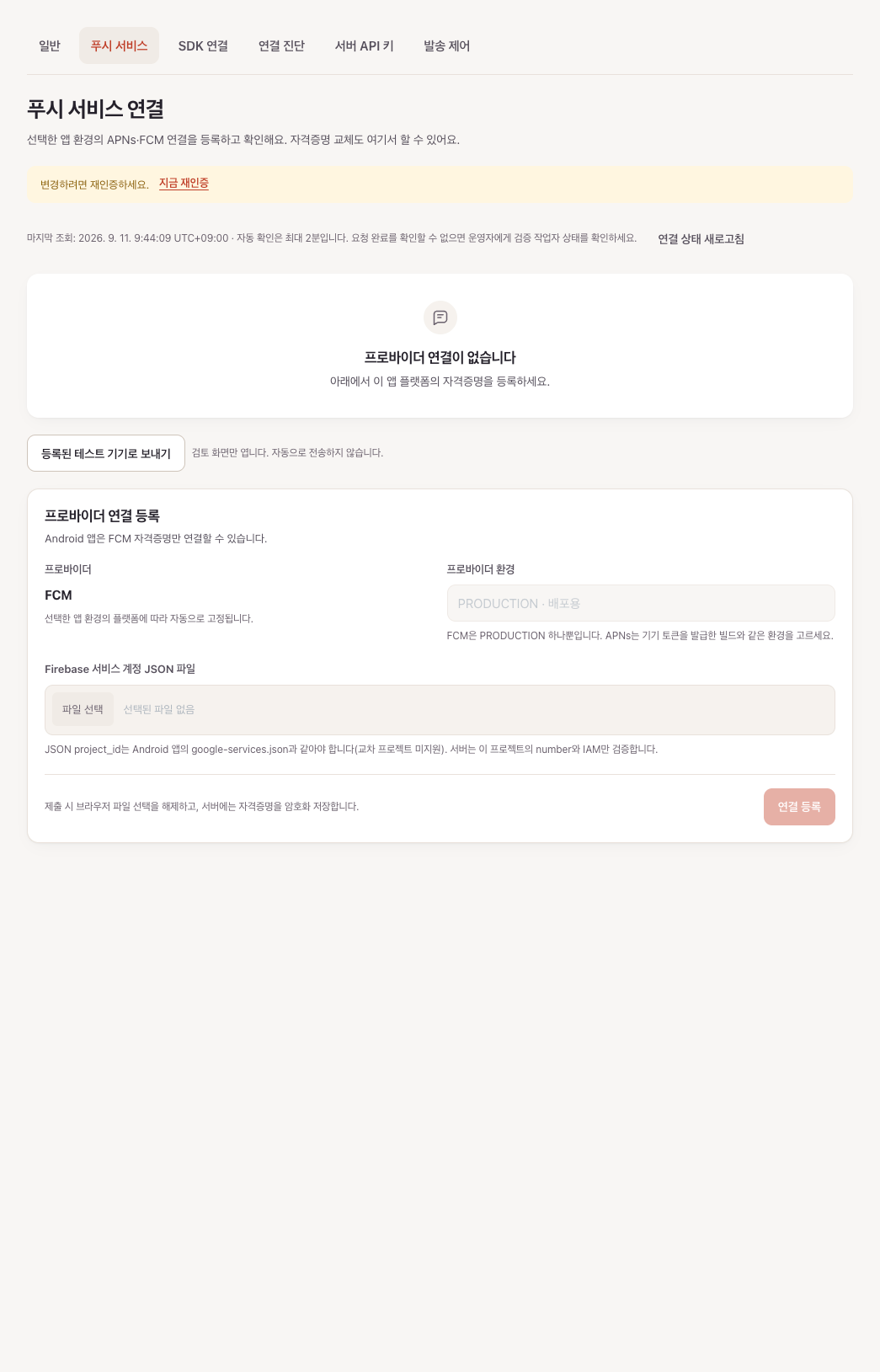
- Open Settings → Push service connection, configure FCM or APNs, and check the verification state.
/app-environments/{appEnvironmentId}/providers - In Settings → SDK connection, obtain the public key for the same environment. Existing apps retain their storageNamespace. Customer SDK endpoints are fixed; never embed a server API key in a mobile app.
/app-environments/{appEnvironmentId}/settings/sdk
0. Prepare Firebase and FCM
- Firebase Console: choose your project and register the Android app with the actual build variant’s applicationId.
- Place the downloaded google-services.json in the app module. If Firebase is already integrated, verify its project/package and preserve the existing setup.
- Use Project settings → Service accounts → Firebase Admin SDK to obtain an approved service-account JSON. Creating a key creates a secret; follow your organization’s authorization and storage policy.
- Select that service-account JSON in Kits Push service connection. Kits reads project_id and client_email from the file; do not guess a sender ID. Cross-project credentials are not currently supported.

// Project build.gradle.kts: merge into the existing plugins block.
plugins {
    id("com.google.gms.google-services") version "4.5.0" apply false
}

// app/build.gradle.kts: merge, do not replace the existing Android setup.
plugins {
    id("com.google.gms.google-services")
}
dependencies {
    // Reference version compiled by the Kits sample; not a latest-version claim.
    implementation("com.google.firebase:firebase-messaging:25.1.1")
}
These are the reference versions compiled by the Kits sample, not a promise of latest versions. Respect an existing Firebase BoM/version catalog and check compatibility without duplicate declarations. The Kits AAR does not install Firebase.
Firebase installation guide · Service-account authentication
New managed SDK quick start
import com.marcocorp.kits.push.fcm.Kits

// Once in Application.onCreate, with the push-fcm module:
Kits.initialize(this, publicKey)
The SDK supplies the production origin and default storage, and reads the dashboard authentication policy. The updated SDK enables audience, event and activity collection by default while preserving saved opt-outs. Use collectionEnabled=false to pause collection until consent. Existing apps must retain their previous namespace across upgrades and key rotation. APNs defaults to production; development-signed apps explicitly select sandbox.
push-fcm owns the Firebase Messaging service and token refresh. Your app still needs google-services.json and the Google services plugin. Use Kits permission/click APIs and forward existing Activity.onNewIntent to Kits.handleNotificationIntent.
| Shared optional setting | Meaning · default |
|---|---|
collectionEnabled | Unified collection gate · true. Start false to pause collection; default true never clears a saved opt-out |
foregroundPresentationPolicy | Foreground presentation policy · PRESENT / .present |
shouldDisplay | Optional presentation callback · allowed if omitted, vetoed on error |
identityAuthProvider | VERIFIED account proof provider · omitted |
audienceCollectionEnabled | Audience metadata and sessions · true. Explicit false stays disabled |
notificationEventsEnabled | Actual receipt/click reporting · true. Also requires message track_events |
observationOptions | persistNotificationEvents · true / activityDistributionEnabled · true |
To pause collection before consent, initialize with collectionEnabled=false. Use Kits.setCollectionEnabled(true) after consent, or false to stop. This is separate from push opt-out and deletion of existing server records. Explicit false feature flags remain disabled even after unified enable. iOS extension receipt reporting is configured separately.
Platform-only settings are grouped under android: KitsAndroidOptions (FCM mode and notification resources) or ios: KitsIOSOptions (APNs environment and delegate integration). shouldDisplay controls foreground presentation and new Android SDK-managed display, but cannot block OS-rendered background notifications on iOS or older Android SDKs. Initialization does not prompt for permission.
The core-only configuration and OS callback examples below are only for maintaining manual low-level integrations; managed initialization above owns that wiring instead.
Supported baseline: Android API 24+. The SDK core has no Firebase or UI-framework dependency beyond the Kotlin standard library. Your app owns Firebase setup and callback forwarding.
1. Obtain an approved SDK
Managed integration needs com.marcocorp.kits:push-fcm and its matching core. Set approvedKitsVersion to a reviewed release supporting the API below. Do not assume a public Maven Central release. From reviewed source only, publish locally with:
./gradlew :push:publishToMavenLocal :push-fcm:publishToMavenLocalAdd the local repository to the consuming app’s existing repository configuration and add the dependency. Follow your organization’s configuration when using an approved internal artifact repository.
// settings.gradle.kts — use only an approved local artifact
dependencyResolutionManagement {
    repositories {
        mavenLocal()
        google()
        mavenCentral()
    }
}

// app/build.gradle.kts
dependencies {
    // Set approvedKitsVersion to the reviewed managed SDK release.
    implementation("com.marcocorp.kits:push-fcm:$approvedKitsVersion")
}
2. Configure at app startup
import android.app.Application
import com.marcocorp.kits.push.KitsPush
import com.marcocorp.kits.push.KitsPushClient
import com.marcocorp.kits.push.KitsPushConfiguration
import com.marcocorp.kits.push.KitsFcmMode

// Legacy core integration only: preserve the exact namespace already used by this app.
// New integrations use Kits.initialize(this, publicKey); the SDK manages storage.
// Merge into your existing Application; define BuildConfig fields in the host.
class MyApp : Application() {
    lateinit var kitsPush: KitsPushClient
        private set

    override fun onCreate() {
        super.onCreate()
        kitsPush = KitsPush.configure(
            context = this,
            configuration = KitsPushConfiguration(
                publicKey = BuildConfig.KITS_PUBLIC_KEY,
                storageNamespace = BuildConfig.KITS_STORAGE_NAMESPACE,
                fcmMode = KitsFcmMode.FID,
            ),
        )
    }
}
Define these BuildConfig fields in your host app. This core example is only for maintaining manual OS integration; do not also initialize with managed Kits.initialize. Keep configuration consistent within the same process and namespace.
3. Connect the FCM mode and callbacks
This example uses FID mode. Configure a compatible Firebase Messaging integration in the host app and add this manifest entry:
<meta-data
    android:name="firebase_messaging_installation_id_enabled"
    android:value="true" />
Your app owns FirebaseMessagingService and the FirebaseMessaging.register() call. Register the service with exported=false. Below, kitsPush is the same Application-owned instance; import KitsSyncState for state observation.
// FirebaseMessagingService callbacks in FID mode
override fun onRegistered(fid: String) {
    kitsPush.registerFirebaseInstallationIdAsync(fid)
}

override fun onUnregistered(fid: String) {
    kitsPush.unregisterFirebaseInstallationIdAsync(fid)
}

// Observe server acknowledgement; close this listener when its owner is finished.
val subscription = kitsPush.addSyncStateListener { state ->
    if (state is KitsSyncState.Synced) {
        // Latest desired device state acknowledged by Kits.
    }
}Wiring example: manifest and real FCM callbacks
These fragments use FID mode. Match .MyApp and .AppMessagingService to your classes. If the app already has an Application or FirebaseMessagingService, integrate with those handlers instead of adding competing instances.
<!-- Merge into app/src/main/AndroidManifest.xml. -->
<manifest xmlns:android="http://schemas.android.com/apk/res/android">
    <uses-permission android:name="android.permission.POST_NOTIFICATIONS" />
    <application android:name=".MyApp">
        <meta-data
            android:name="firebase_messaging_installation_id_enabled"
            android:value="true" />
        <service android:name=".AppMessagingService" android:exported="false">
            <intent-filter>
                <action android:name="com.google.firebase.MESSAGING_EVENT" />
            </intent-filter>
        </service>
    </application>
</manifest>
import com.google.firebase.messaging.FirebaseMessaging
import com.google.firebase.messaging.FirebaseMessagingService
import com.google.firebase.messaging.RemoteMessage
// MyApp is your existing Application subclass and owns kitsPush.
class AppMessagingService : FirebaseMessagingService() {
private val kitsPush get() = (application as MyApp).kitsPush
override fun onRegistered(installationId: String) {
kitsPush.registerFirebaseInstallationIdAsync(installationId)
}
override fun onUnregistered(installationId: String) {
kitsPush.unregisterFirebaseInstallationIdAsync(installationId)
}
override fun onMessageReceived(message: RemoteMessage) {
val payload = kitsPush.handleForegroundMessage(message.data)
// Route a recognized payload through your existing foreground UI.
// If null, continue the host's other-provider handling.
}
}
// After Firebase initialization and your host's consent decision:
// manual FID refresh; the callbacks above receive the identifier.
FirebaseMessaging.getInstance().register().addOnFailureListener {
// Show a safe retry state. Never log credentials or push addresses.
}Request permission and verify presentation
- On Android 13+, request POST_NOTIFICATIONS in response to a meaningful user action. Read actual permission before/after the prompt and on return from Settings, then call reportPermissionAsync.
- Distinguish not-yet-requested from denied. Android has no complete iOS-style status enum, so the host must combine its permission-request history with current notification permission.
- On Android 8+, also inspect the notification channel: a disabled channel can prevent display despite app-level permission. The host owns the small icon, channel, click routing and foreground presentation policy.
5. Verify in the dashboard and on the device
- After SDK synchronization, find the installation under Audience → Push subscriptions in the same app environment. Check installation/subscription IDs, platform, permission and preference; never share raw tokens.
- Mark only your own installation as a test device and select it for a direct send. Recording a send as a test still sends a real notification and bypasses no permission, consent or push service checks. Start with one text-only SERVICE notification.
- In Delivery → Sent messages, inspect the request and individual delivery results. Dashboard/API source and standard/test purpose are separate dimensions. Acceptance or push service acknowledgement is not device display or click success.
- Check foreground, background, cold-start notification taps, and deny/re-enable flows separately. Add images, tags, localization and receipt observation only after basic delivery works.
Troubleshoot the failing stage
| Symptom | First checks |
|---|---|
| No installation appears | Check app environment/public key, API origin/network access and SDK errors. configure/Queued is not a server acknowledgement. Do not delete database or app data as a first fix. |
| FCM_MODE_MISMATCH / Firebase callback | Match the manifest flag and KitsFcmMode; inspect variant-specific google-services.json, Google Play services and service registration. Never substitute a legacy token for a FID. |
| Accepted but no notification | Inspect individual delivery results, push service errors, OS permission/app preference, channel/Focus settings, then foreground presentation. Do not repeatedly resend before checking the first result. |
| Duplicate notifications | Check whether both OneSignal and Kits sent the event, or the app rendered an OS-displayed notification again. Assign each backend event explicitly to either the existing platform or Kits. |
4. Permission, preference and notifications
- Read actual OS notification permission and pass it to reportPermissionAsync. Do not assume consent or expect an SDK report to change OS permission.
- Forward the user’s in-app choice with setPushPreferenceAsync. Marketing consent is separate.
- Forward actual foreground receipt to kitsPush.handleForegroundMessage(message.data). Forward clicks from Activity.onCreate and onNewIntent to handleNotificationIntent; update setIntent in onNewIntent.
- Forward unrecognized payloads to your existing handler. Your app decides navigation and link opening; the SDK does not perform them automatically.
- Queued means locally queued. Confirm server acknowledgement through KitsSyncState.Synced; use synchronizeAsync for an explicit synchronization request.
Optional: actual received/clicked observations
SDK source with the collection-defaults update enables notificationEventsEnabled and persistNotificationEvents by default. Previously published versions may differ; check your installed release. Message track_events=true is still required separately; omitted API fields and false in saved drafts are not rewritten. Saved opt-outs and collectionEnabled=false take precedence. Review the app’s consent and privacy notices.
// Optional argument in KitsPushConfiguration, after host consent:
notificationEventsEnabled = true

// Forward actual callbacks:
kitsPush.handleForegroundMessage(message.data)
kitsPush.handleNotificationIntent(intent)
Add {"track_events": true} to the message. Reporting requires a server-issued kits_delivery_id and the exact version marker; never invent this reserved ID. CLICKED does not create RECEIVED, and push service acceptance or display is not inferred as receipt.
Custom host adapters may use reportNotificationReceivedAsync(data, callback) or reportNotificationClickedAsync(data, callback); results arrive on the main looper. FCM background notification+data OS_DISPLAY is shown by the OS without a receipt callback, so do not infer receipt from click extras.
Permanent failures such as an authentication rejection (401) are not retried indefinitely. Reporting does not change notification delivery or analysis completion.
Message details load SDK observations automatically and refresh every five seconds for up to five minutes while visible. The chart uses server report-arrival time, which can differ from the actual device click time. Retained historical buckets remain available after refresh or when you return later.
Background receipt reporting
With a server and push-fcm SDK supporting ANDROID_APP_DISPLAY_V1, notifications without images are sent as data-only messages and received and displayed by the SDK. Image notifications retain OS display to preserve their images, so background receipt reports can still be missing. Host initialization remains Kits.initialize(this, publicKey). Older SDKs and core-only manual integrations retain OS display. Deploy the compatible server before rolling out the updated app.
Optional: buttons on host-rendered foreground notifications
Use only when the host chooses to render a notification after an actual foreground callback. Category selection is local, not a new Android wire field. The helper neither posts a notification nor sends a PendingIntent.
val actions = KitsNotificationActions(listOf(KitsNotificationCategory("ORDER_V1",
    listOf(KitsNotificationAction("VIEW_ORDER", "View order", R.drawable.ic_order)))))
actions.addToForegroundNotification(builder, message.data, "ORDER_V1", isAppForeground) { action ->
    // Host-owned: unique per delivery/action, immutable explicit Activity PendingIntent.
    hostPendingIntentFor(action.identifier, message.data)
}
// Host owns permission, channel, contentIntent, deduplication and notify().
Add at most 3 local buttons to a fresh builder without existing actions. Foreign payloads, unknown categories or false foreground skip the factory. Launch UI with a direct Activity PendingIntent, not a Receiver/Service trampoline. Forward real taps through handleNotificationIntent for CLICKED only; no action-ID analytics are collected.
SDK login and logout
- Each project environment has one mode that applies to all of its apps. The first app of a project environment starts in BASIC; apps added later follow that environment’s mode. New SDK convenience initialization discovers the dashboard policy without a duplicate app setting. BASIC needs no customer authentication callback, JWT endpoint or signing key. BASIC does not verify external ID ownership: a client in the same environment can claim another UID and may receive its notifications. Use it when accepting that limitation. VERIFIED authentication failures never switch to BASIC automatically.
- For VERIFIED, a JWT from your trusted backend is required. Connect the SDK authentication callback at app startup. Your backend verifies the session and active account, and checks that the requested external_id matches the session UID before signing a JWT locally with createIdentityTokenSigner. No Kits token-mint HTTP request is made; the default TTL is 300 seconds. Never trust a user ID supplied by the app alone.
- Generate a key pair once in your own environment with generateIdentityKeyPair. Import only keyId and publicKeyPem into the project environment under Dashboard project settings → SDK setup; keep privateKeyPem in your backend secret store. Every app of that project environment shares the imported public keys. Never upload a private key to Kits. Rotate by importing the new public key, switching your signer, then revoking the old key. Never automatically fall back to legacy minting or unverified login after JWT signing or verification fails.
- Both modes use the installation deviceToken to read GET /v1/installations/{id}/identity and change the binding with POST /v1/installations/{id}/identity. VERIFIED LOGIN sends token only; BASIC LOGIN sends external_id only. LOGOUT omits both token and external_id. The SDK manages expected_binding_id, operation_id, durable storage, serialization and retries. Never log proofs or device tokens.
- The SDK persists each operation mode; old journals remain VERIFIED. After restarting with a different mode, it reconciles the completed state first, then halts an unfinished LOGIN with IDENTITY_AUTH_MODE_CHANGED. Reassert login for the current session to pass through a logout barrier before creating a new operation in the selected mode.
- The new AUTO flow reads the binding and policy revision together from GET /v1/installations/{id}/identity-policy. A changed expected_policy_revision on a new LOGIN returns 409 IDENTITY_REBIND_CONFLICT for reconciliation. Failed or malformed policy responses never mean BASIC. Previously sent operations are reconciled first and VERIFIED proofs are never silently removed. LOGOUT uses the existing identity path without a policy lookup. Explicit modes and old journals remain compatible.
- The JWT uses ES256, aud=kits:identity, the device’s own app environment as iss, identity.external_id, and integer-second iat/exp. TTL is 1–3600 seconds; the JWT is not bound to a device, binding or operation. If stolen, it may be reused on another authenticated installation while valid, and its contents are not encrypted. Use HTTPS and Cache-Control: no-store; never log private keys, JWTs or request bodies. Do not issue a JWT per message.
- Legacy compatibility: identity.createToken and POST /v1/identity-tokens remain for existing kitid1 proofs but are deprecated for new integrations. Only that legacy HTTP path needs an identity:write server key and installation/binding/operation context. Local JWT signing needs no Kits API key; messages.create separately uses a messages:send server key.
- A locally queued operation is not a remotely confirmed logout. Check identityState for the confirmed result. Do not run this flow concurrently with legacy backend identify/logout calls.
The key setup and signing example below apply only to VERIFIED.
import { createIdentityTokenSigner } from '@marco-inc/kits-node';

// VERIFIED backend only: load the private key from your secret store.
const signer = createIdentityTokenSigner({
  appEnvironmentId, keyId, privateKeyPem, ttlSeconds: 300,
});

// In an authenticated handler, after checking the active account:
if (request.external_id !== verifiedUid) throw new Error('Session changed');
const result = signer.sign(verifiedUid); // {token, expires_at}; no HTTP call
// Return only to the authenticated app with Cache-Control: no-store.
The calls below are separate examples for login events, logout events and state inspection. Do not execute them together in sequence.
// In Application.onCreate, once (managed push-fcm module):
Kits.initialize(this, publicKey)

// On authenticated login:
Kits.login(userID)

// On logout (a separate event):
Kits.logout()

// Remote confirmation, not just local queuing:
Kits.identityState()
Read the exact authentication, request and response contracts
Notification status-bar icon
The managed push-fcm SDK uses kits_notification_small_icon as its default small icon. Add an app resource with that exact name to override the SDK default. Bundle it in your app build; this is not a dashboard upload.
app/src/main/res/drawable-mdpi/kits_notification_small_icon.png    // 24 × 24 px
app/src/main/res/drawable-hdpi/kits_notification_small_icon.png    // 36 × 36 px
app/src/main/res/drawable-xhdpi/kits_notification_small_icon.png   // 48 × 48 px
app/src/main/res/drawable-xxhdpi/kits_notification_small_icon.png  // 72 × 72 px
app/src/main/res/drawable-xxxhdpi/kits_notification_small_icon.png // 96 × 96 px
Use a white monochrome silhouette on a transparent background. Android renders the alpha mask; a filled color logo or adaptive launcher icon can appear as a square or fail to display correctly. A monochrome vector drawable also works. The SDK manifest already references the default small icon, so no duplicate app manifest entry is needed.
For a per-message override, open the push composer → Advanced options → Android settings → Small icon resource and enter a name without an extension, such as ic_stat_analysis. The API field is android_small_icon. That resource must already ship in the receiving app version; URLs are not supported. Foreground per-message icons require an SDK release supporting this feature.
If release builds shrink resources, retain additional icons and sounds referenced only by name. Merge the following with existing keep rules using your actual filenames, then verify the release APK.
<!-- app/src/main/res/raw/kits_resource_keep.xml -->
<resources xmlns:tools="http://schemas.android.com/tools"
    tools:keep="@drawable/ic_stat_analysis,@raw/analysis_done" />
Manage Android notification channels in the dashboard
- Open an Android app environment → App settings → Notification channels, then add a channel or group. Names and descriptions appear in device notification settings.
- Set importance, sound, vibration, LED, badges and default lock-screen visibility, then save. Requires both the channel-management server and a channel-sync Android SDK release. No extra channel code is needed in managed initialization.
- In the push composer → Advanced options → Android settings → Notification channel, select by name. No selection uses the app default. You can also enter the ID of a channel created in app code.
You can edit existing names, descriptions and archive status. Create a new channel for different behavior after registration; never use new channels to evade a user block. Archiving hides new send selections and does not delete device channels. Channel groups organize Android settings and are not notification group keys.
Group notifications by conversation or post
Requires an android_group-capable server and Android SDK 0.7.3+. Choose a group ID per message on the server. Individual notifications with that ID remain visible together; this is not a channel or android_notification_tag replacement.
"android_group": "chat:room-1"

// Optional app fallback when the server does not specify android_group:
<string name="kits_notification_group_key_field" translatable="false">chatId</string>
The server ID wins; otherwise the SDK uses the configured data field, such as data.chatId. Without either, it does not group. Each notification belongs to one group, but group IDs can vary per message without an app update. Prefix chat: and post: to avoid colliding conversation/post IDs.
Applies to SDK-rendered Android text notifications, not image or OS-rendered paths. Use the existing ios_thread_id for iOS grouping.